OpenAI Codex usage limits: the 5-hour and weekly limits on each ChatGPT plan, and how to check yours
Codex usage limits in October 2026: which ChatGPT plans include Codex, how the 5-hour and weekly windows work, and where to check your usage.
 By Asif Syed, Founder of TokenNibbler
On this page
- Which ChatGPT plans include Codex
- How the 5-hour and weekly windows work and reset
- What counts against your Codex usage limits
- How to check your Codex usage
- What happens when you hit a Codex limit
- How to make your Codex limits last longer
- See your Codex limits live, next to your Claude limits
- Limit Relay: carry on in the plan with room
- Quick reference
Short answer: Codex is included in every ChatGPT plan, from Free to Enterprise, and your plan sets how much you can use. Plus and Business have a 5-hour limit, and weekly limits can also apply. At the time of writing (October 2026), OpenAI says Pro plans have no 5-hour limit. Check your current Codex usage on the usage dashboard or with /status in the Codex CLI.
Codex usage limits are not a fixed number of messages. OpenAI publishes estimated ranges, and how far your plan goes depends on the model, the size of each task and whether it runs on your computer or in the cloud. This guide covers what OpenAI’s own pages say today, how to check where you stand, and what your options are when you reach a limit.
Everything below comes from OpenAI’s Codex pricing page, the Help Center article Using Codex with your ChatGPT plan and ChatGPT pricing, all checked on 15 October 2026. Codex limits changed several times in 2026, so treat the figures as correct at the time of writing (October 2026) and check the dashboard for your own account.
Which ChatGPT plans include Codex
According to OpenAI’s Help Center, “Codex is included across ChatGPT plans, including Free and Go. Usage limits vary by plan.” Codex Cloud (tasks that run on OpenAI-managed computers) is available to eligible Plus, Pro, Business, Enterprise, Healthcare and Education accounts, and is not included with Free or Go.
| Plan | Price (US dollars) | Codex on this plan, at the time of writing |
|---|---|---|
| Free | $0 a month | Limited Codex access |
| Go | $8 a month | Limited Codex access |
| Plus | $20 a month | Codex on the web, in the CLI, in the IDE extension and on iOS, plus cloud features such as automatic code review |
| Pro | From $100 a month ($100, $200 or $500 tiers) | Everything in Plus, with longer Codex sessions and Ultrafast mode on Pro 500; no 5-hour limit at present |
| Business | $20 per user a month billed annually ($25 monthly), from 2 users | ChatGPT and Codex in a shared workspace with admin controls |
| Enterprise and Edu | Contact OpenAI sales | Limits depend on the workspace’s pricing (see below) |
Sources: Codex pricing, ChatGPT pricing, About ChatGPT Pro tiers.
On the Free and Go plans, the Codex pricing page lists one model (GPT-6 Luna) at Standard speed in the desktop app, subject to rollout. Among the Pro tiers, OpenAI says Pro 200 includes more usage than Pro 100, and Pro 500 has the highest included usage of the three.
How the 5-hour and weekly windows work and reset
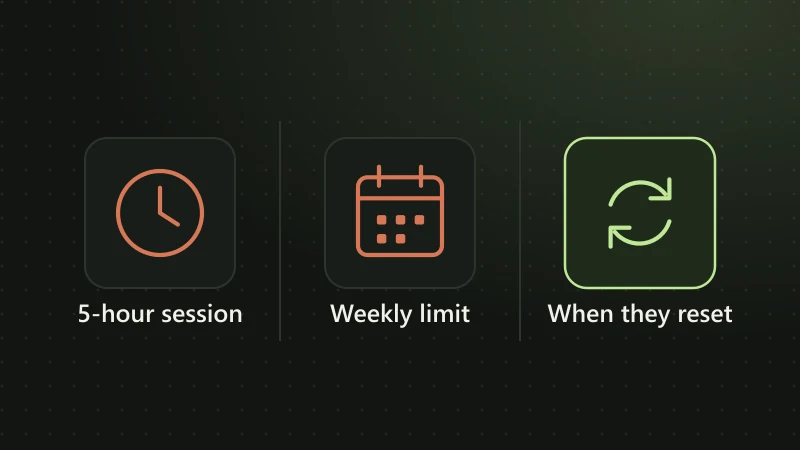
Codex limits run in windows. A 5-hour window covers your recent burst of work, and a weekly window caps your total across the week. OpenAI’s Help Center describes a reset that “refreshes your 5-hour and weekly Codex usage windows”, and the pricing page notes that “weekly limits may also apply”.
Estimated messages per 5 hours (Plus and Business)
OpenAI gives ranges, not fixed counts, for local messages (Codex running on your computer) in each five-hour period. These are the estimates on the Codex pricing page at the time of writing (October 2026):
| Model | Plus | Standard Business |
|---|---|---|
| GPT-6 Astra | 5–45 | 5–45 |
| GPT-6.1 Sol | 15–160 | 15–160 |
| GPT-6 Sol | 15–150 | 15–150 |
| GPT-6 Luna | 350–3,000 | 350–3,000 |
OpenAI is clear that “these estimates are not fixed message limits”. The range is wide because a short script uses a fraction of what a long session over a large codebase uses.
Pro, Enterprise and Edu
- Pro: OpenAI’s pricing page says “Pro plans currently have no five-hour limit.” Each Pro tier includes a different total allowance.
- Enterprise and Edu with flexible pricing: no fixed rate limits. Usage scales with credits.
- Enterprise and Edu without flexible pricing: the same per-seat limits as Plus for most features.
What counts against your Codex usage limits
Your Codex allowance is shared across more than the CLI. From OpenAI’s pages at the time of writing:
- Local and cloud share one allowance. Local messages and cloud chats draw from the same plan allowance, and cloud tasks may use more of it than local messages.
- ChatGPT Work shares it too. OpenAI’s pricing page says ChatGPT Work “uses the same pricing, credits, and usage limits as Codex”.
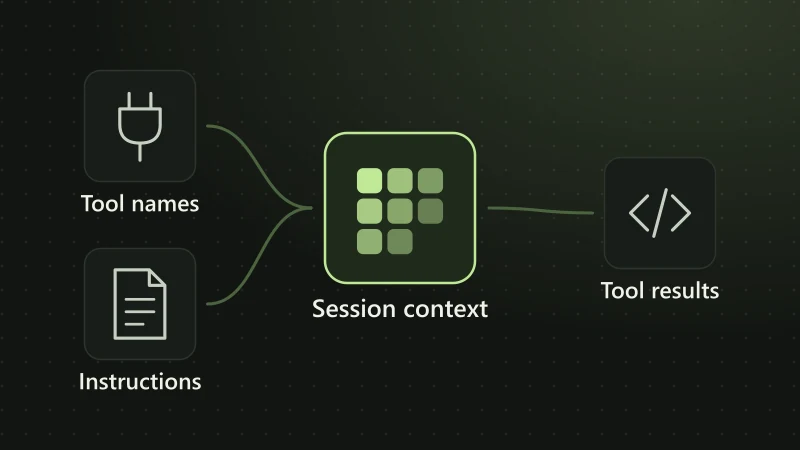
- The task shapes the cost. Model choice, context, reasoning, tool use, retrieval and caching all affect usage, so prompt length alone is not a reliable guide.
- Fast mode costs more. Fast mode uses your included allowance at 2.5x the Standard rate for the same model.
- Images cost more. Image generation uses included limits about 3 to 5 times faster on average.
- Code review. Reviews Codex runs through GitHub count as Code Review usage. Reviews run locally count toward your general limits.
- Not counted: when you are signed in with ChatGPT, auto-review safety checks are free and don’t count toward your plan’s limits. Regular ChatGPT image, file upload and voice limits are separate and don’t apply to Codex.
How to check your Codex usage
OpenAI documents three places to see where you stand:
- The usage dashboard. Open chatgpt.com/codex/settings/usage to see your current limits and reset times. The Help Center suggests checking “which allowance is exhausted, your credit balance, and any reset time shown”.
/statusin the Codex CLI. During an active Codex CLI session, enter/statusto see your remaining limits.- Settings. Where credit purchases are available for your account, you can see your balance and buy credits under Settings → Usage in ChatGPT, or Usage & Billing in Codex.
OpenAI’s own advice is to check the dashboard every week or two to understand your pace. That works, but it means opening a page to find out. The section on TokenNibbler below shows the same numbers on your desktop, with your pace marked on each window.
What happens when you hit a Codex limit
Reaching a limit does not stop the work in front of you. OpenAI says that if you reach your limit during an active turn, Codex “can continue working on that turn, subject to fair-use limits”. After that, your options depend on your plan:
| Option | Who it’s for, at the time of writing |
|---|---|
| Buy credits | Plus and Pro users can buy credits to keep working without changing plan |
| Workspace credits | Business, Edu and Enterprise plans with flexible pricing |
| Use an API key | All users can run extra local chats with an API key, charged at standard API rates |
| Use an available reset | Some Plus and Pro referral offers add a banked reset, which refreshes the 5-hour and weekly windows |
| Upgrade or wait | Every plan: the limit notice shows the reset time and the options on your account |
A few more points from OpenAI’s pages are worth knowing before you plan around a limit. Included usage is used first, then your credit balance. OpenAI Support cannot reset ChatGPT or Codex limits, although it can investigate if usage looks counted wrongly. When you run Codex with an API key, API pricing applies instead of your ChatGPT plan’s limits.
How to make your Codex limits last longer
OpenAI’s pricing page lists these tips:
- Keep prompts precise and remove context the task doesn’t need.
- Give Codex only the relevant files, and narrow the sources where you can.
- Define the output you need: audience, format and length.
- Keep
AGENTS.mdsmall, and nest files in your repository so each folder loads only what applies. - Turn off MCP servers you aren’t using: each one adds context to every message.
- Pick a smaller model when it still gives a useful result.
Knowing your pace is what makes these tips pay off: you can see which sessions drain the window and adjust before the limit arrives.
See your Codex limits live, next to your Claude limits
TokenNibbler is a desktop app for Windows 11 and Mac that puts your ChatGPT (Codex) limits and your Claude limits on one screen, live. On the Overview, under Your plans, the ChatGPT card shows your Codex windows and the Claude card sits beside it, so you can see at a glance which plan has room.
TokenNibbler reads your Codex limits through Codex’s own app-server (account/rateLimits/read), the same numbers chatgpt.com shows under Usage. TokenNibbler never reads your Claude or ChatGPT sign-in. It reads your plan limits through Claude Code and Codex, in a way that runs no model and uses none of your allowance. How limits are read explains each step.
What the ChatGPT card shows
- Each window your plan reports, labelled by length (5-hour, Weekly), with the share used and Resets in a countdown to the reset time.
- A pace marker on each bar showing how much of the window has passed, so you see at once when your use runs ahead of time (Ahead of pace) or keeps step with it (On pace).
- A forecast. When your current pace reaches the limit before the reset, the window says when, for example Limit at Sun 4:04.
- A gauge with what is left of your tightest limit, named for it (Weekly left or 5-hour left), and a status: Plenty left, Running low or Limit reached.
- Model limits. Limits that apply to one model appear as a small line under the gauge, with the use and the reset.
- Where the numbers come from: Reported by Codex and how long ago, so you always know the reading is current.
If Codex is installed and signed in with your ChatGPT account, the card fills in on its own. Connect Codex walks through the setup.
Alerts before you hit the limit
In Settings › Alerts, Limit alerts sends a desktop alert when a 5-hour or weekly limit passes a threshold, once per window, with when you reach the limit at your current pace. Choose At 90%, At 75% and 90% (the default) or At 50%, 75% and 90%. Turn on Reset notices to hear when a limit you were warned about resets, and use Send a test alert to see one. Details are in Alerts.
Limit Relay: carry on in the plan with room
When one plan reaches 90% of a window and the other plan is below 70% on every window, the plan card offers Continue this work in Claude Code (or Continue this work in Codex). It opens a brief of your latest session: its goal, last requests, open to-dos, the last error and which files changed (file names and a line count from git, never contents). Select Copy prompt and paste it into the other agent. Nothing is sent anywhere until you paste it.
Live limits are part of TokenNibbler Free. Limit alerts, forecasts and Limit Relay are part of Pro, and TokenNibbler includes 14 days of Pro, free with one click: no account, no card.
Quick reference
- Plans with Codex: every ChatGPT plan, from Free to Enterprise. Codex Cloud is for eligible Plus, Pro, Business, Enterprise and Edu accounts.
- Windows: a 5-hour window on Plus and Business, with weekly limits that may also apply. Pro currently has no 5-hour limit.
- Check usage: chatgpt.com/codex/settings/usage, or
/statusin the Codex CLI. - At the limit: finish the current turn, then buy credits, use an API key, apply a reset, upgrade or wait.
- Live on your desktop: download TokenNibbler to see your Codex and Claude limits together, with alerts before you run out.
Sources
- OpenAI, Codex pricing and usage limits checked 15 October 2026
- OpenAI Help Center, Using Codex with your ChatGPT plan checked 15 October 2026
- OpenAI Help Center, About ChatGPT Pro tiers checked 15 October 2026
- OpenAI, ChatGPT pricing checked 15 October 2026
Limits and plans change. This post describes them as of 13 October 2026, and is re-checked when Anthropic or OpenAI change them.
Asif Syed is the founder of TokenNibbler, the desktop app that shows developers where their Claude Code and Codex usage goes and how to make their plans last. Every post here is checked against the app’s code and the official Anthropic and OpenAI documentation before it is published.