How to check your Claude Code usage and limits: every command, and what each one shows
Check your Claude Code usage limit with /usage, your context with /context and your account with /status. What each shows, and how to track usage over time.
 By Asif Syed, Founder of TokenNibbler
On this page
Short answer: Run /usage in Claude Code. It shows your plan’s usage limits, when they reset and, on Pro, Max, Team and Enterprise, a breakdown of what used them over the last 24 hours or 7 days. /context shows what fills the current conversation, and /status shows your account, model and version. On claude.ai, Settings › Usage shows the same 5-hour and weekly limits as progress bars.
Claude Code has several commands with “usage” or “cost” in their job, and they changed this year: /cost and /stats now open /usage. This guide maps each command to the question it answers, shows what the built-in tools cover, and explains how to track Claude Code usage over weeks and months. Everything here was checked against Anthropic’s docs at the time of writing (October 2026).
The command map
Each command answers a different question. From the Claude Code commands reference:
| Command | The question it answers | What it shows |
|---|---|---|
/usage | How much of my plan have I used? | “Session cost, plan usage limits, and activity stats.” On Pro, Max, Team and Enterprise, a breakdown of what counts against your plan limits |
/cost | Same as /usage | “Alias for /usage” |
/stats | Same as /usage | “Alias for /usage. Opens on the Stats tab” |
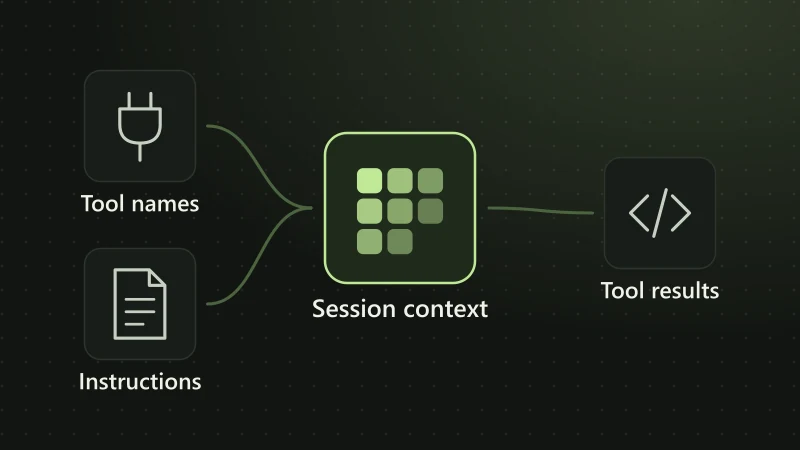
/context | What is filling this conversation? | Current context usage as a coloured grid, with suggestions for context-heavy tools and memory bloat |
/status | Which account, model and version am I on? | The Settings screen “on the Status tab, showing version, model, account, and connectivity” |
/insights | How do I work, and where do things go wrong? | An HTML report on your recent sessions on this machine |
/usage-credits | Can I keep working past my limit? | Your usage-credits settings, or a request to your admin on Team and Enterprise |
The short version: /usage is for your plan limits, /context is for the conversation in front of you, and /status is for your account.
/usage and /status both run immediately, even while Claude is responding, so you can check without stopping a task.
What /usage shows on a Pro or Max plan
/usage has several parts. The costs page describes each one.
Plan usage bars
Subscribers “see plan usage bars, activity stats, and a usage breakdown on the same screen.” The bars show how much of your 5-hour session and weekly limits you have used and when they reset. The error reference recommends exactly this when you hit a limit: “Run /usage to see your plan limits and when they reset.”
The Session block
The top of /usage shows token counts and a dollar figure for the current session. On a subscription, treat it as information only: “Claude Max and Pro subscribers have usage included in their subscription, so the session cost figure isn’t relevant for billing purposes.” The totals reset when /clear starts a new session.
The plan usage breakdown
On Pro, Max, Team and Enterprise, /usage adds:
- Attribution: recent usage by skill, subagent, plugin and individual MCP server, each as a share of the total.
- Behaviour flags: behaviours such as long context or cache misses, flagged when one accounts for 10% or more of recent usage, each with a tip to reduce it.
- Loops: the heaviest
/loopand other scheduled tasks that ran recently.
Press d or w to switch between the last 24 hours and the last 7 days.
If the bars don’t load
When the request for your plan limits fails, /usage shows the last bars it loaded on this machine within the past 60 minutes, with a Showing last-known usage note. Press r to retry.
Other places to check Claude usage
Claude Code is not the only place your usage shows. Anthropic’s limits are shared: the Help Center says your usage of “claude.ai, Claude Code, Claude Desktop” counts “towards the same usage limit” (How do usage and length limits work?).
- claude.ai, Settings › Usage. The Usage limit best practices article says it shows “progress bars showing how much of your five-hour session and weekly usage limits you’ve consumed.”
- Desktop app. Click the usage ring next to the model picker.
- Your status line. Claude Code can pass its
rate_limitsfields to a custom status line, so the remaining allowance stays on screen while you work. - Warnings. Before a window runs out, Claude Code can warn you, for example
You've used 85% of your session limit · resets 3:45pm.
What the built-in commands cover
The built-in tools are built for the moment you are in. Knowing their scope helps you pick the right one.
- This machine. The
/usagebreakdown is “computed from local session history on this machine, so usage from other devices or claude.ai is not included.” The same goes for/insights. - The last 7 days. The breakdown covers the last 24 hours or the last 7 days.
- 30 days of transcripts. Claude Code removes local session files older than
cleanupPeriodDays, “30 days by default”, at startup. Anything built from those files can only look back that far. - Skills, subagents and servers, not projects. The attribution splits usage by skill, subagent, plugin and MCP server. It doesn’t tell you which of your repositories used most of your week.
- Claude only. If you also use Codex with a ChatGPT plan, that plan’s limits live in Codex and on chatgpt.com.
These views show where you stand right now. To know which project drained your week, how this month compares with last, or how Claude and ChatGPT add up, you need a usage tracker that keeps the history.
Tracking Claude Code usage over time
A Claude Code usage tracker earns its place by answering the questions a single snapshot can’t: how your use changes week to week, which work drives it, and whether you’ll reach the reset. TokenNibbler is a desktop app for Windows 11 and Mac, built for exactly that. It reads your plan limits through Claude Code and Codex, in a way that runs no model and uses none of your allowance, and it counts your usage from the session files Claude Code and Codex already save on your computer. It never reads your Claude or ChatGPT sign-in.
Your limits, live, for Claude and ChatGPT together
The Overview has one card for Claude and one for ChatGPT. Each shows that plan’s own 5-hour and weekly limits as live bars, with Resets in under each, a marker for how much of the window has passed and Ahead of pace when you are using it faster than time is passing. A gauge names the tighter limit (Weekly left or 5-hour left). Each card says where its figures came from, such as Reported by Claude Code · 2 min ago. The docs explain how limits are read.
Up to 400 days of history
The Usage page keeps your Claude Code and Codex token use for up to 400 days, so your history stays after Claude Code deletes old transcripts. Pick a period (Last 7 days, This month, Last month, Last 90 days or Custom) and see the change against the period before, a Weekly trend, and panels By model, By project and When you work. Export CSV gives one row per day, agent, model and project.
Which project used your week
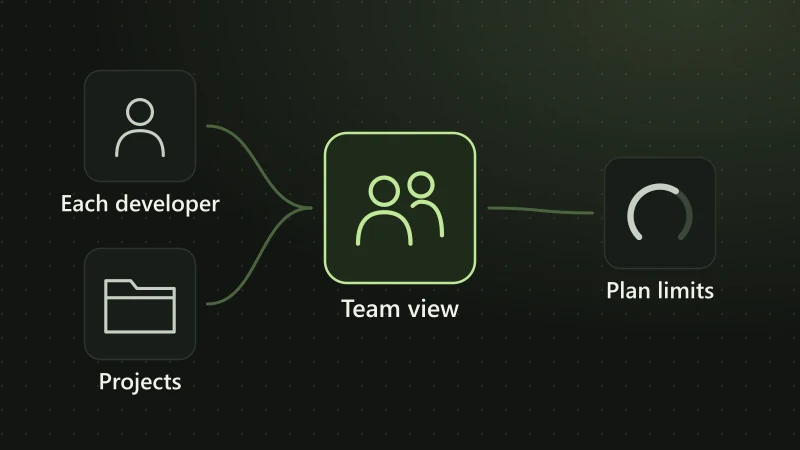
The Projects page lists every project you worked in with Claude Code or Codex, with its sessions and tokens. Each project’s page has a Plan allowance card: that project’s share of your plan use, with a bar for each week. On the projects list you see each project’s share of this week. That turns “my weekly limit is at 80%” into “this one repository used most of it”. See Projects for how the share is worked out.
More than one computer or account
With sync on, the Usage and Projects pages count your other computers’ usage too. If you use a personal plan and a work seat, TokenNibbler keeps limits, usage and history for each Claude and ChatGPT account separately, so plans are never mixed.
What is in each plan
Live limits, this week’s usage and Projects are part of TokenNibbler Free. Usage history, Plan Fit, limit alerts and the forecast are part of Pro, at $9 a month or $86 a year. TokenNibbler includes 14 days of Pro, free, started with one click: no account, no card. See pricing for the full list.
A quick routine for checking your usage
A simple habit keeps surprises away:
- Start of the day: run
/usage(or glance at TokenNibbler’s Overview) to see both windows and when they reset. - Mid-task, when a session feels slow: run
/contextto see what fills the window, and/clearor/compactif it’s mostly old history. - Before a long break: wrap up large sessions. The prompt cache lasts an hour on a subscription (five minutes once you’re drawing on usage credits), and the first message after it expires reprocesses the whole conversation (costs page).
- Once a week: look at which projects and models used your week, and change one habit for the biggest one.
If your plan limits don’t appear in TokenNibbler, see limits not showing. To see why limits drain as they do, read Claude Code usage limits explained, or download TokenNibbler and track your own.
Sources
- Claude Code docs, Commands checked 15 October 2026
- Claude Code docs, Manage costs effectively checked 15 October 2026
- Claude Code docs, Error reference checked 15 October 2026
- Claude Help Center, Usage limit best practices checked 15 October 2026
- Claude Help Center, How do usage and length limits work? checked 15 October 2026
Limits and plans change. This post describes them as of 11 October 2026, and is re-checked when Anthropic or OpenAI change them.
Asif Syed is the founder of TokenNibbler, the desktop app that shows developers where their Claude Code and Codex usage goes and how to make their plans last. Every post here is checked against the app’s code and the official Anthropic and OpenAI documentation before it is published.